
Last year during summer I struggled big time with my to-do list and all the tasks that lived on post-its, analogue and digital calendars and then another unhealthy list in my head. My previous time management that had worked for decades just didn’t help me anymore. I felt overwhelmed and annoyed and just tired. So I set out for some research and some time management reloaded. I ended up trying a few different apps and options. I knew the paper planner would not be feasible anymore even though I loved it. In the end I decided on the TickTick App.
Since last year I wanted to share how I use it and why I find it so useful and what a game changer it has been for me. It never saw the day of light last NaBloPoMo.
Disclaimer: After I decided that this year for NaBloPoMo I would write a review I have reached out to the company asking if they would sponsor my annual subscription in exchange for this blog post. They did. Everything I write is my own opinion and has not been influenced by the sponsoring.
Reasons I choose TickTick for my Time Management
Here are the reasons I decided to go with the Tick Tick app:
- integrates to iCal and the Apple system – not many do. This was a non-negotiable for me
- has a nice visual appearance – I can never spent (efficient) time in an ugly app
- offers different time management options – pomodoro, Eisenhower – I have used them in the past and they work for me
- includes habit trackers – what’s not to love
- is not focusing on collaboration and team project management – many out there focus on collaboration work which is something I don’t need. However there is team collaboration included in this app I can just not say anything about it.
- many different views of task lists – calendars, daily, weekly, three days, to-do-list styles
- great filtering options – only see what’s relevant and not get distracted by all the other things that need doing
- sending tasks via email to your to-do list inbox – comes in handy if you don’t want to deal with the email just yet or is not urgent this second but needs doing at some point
- giving me fun statistics – a bit of gamification (worldwide rankings) is also included, also download options I excel files for the nerds among us
- there is a desktop and an app version – works across all devices (phone, tablet, computer)
- a decent price – many tools are expensive and I am paying for services I don’t need
Setting up my Tick Tick App
I will not go through all the features and ways you can use the app. It is expansive and I am not sure I have really understood every feature even after using it for 14 months to be honest. It really is that complex and therefore I believe however you need to plan your day, week or life you can tweak it in the way you need. I think I am just going to give you an idea of how I use it.
When I switched to the app I finally combined all my work to-dos, private to-dos, new volunteering to-dos and my blog stuff into one system. Before I had different lists for a ton of stuff. I still use another app UpNote for my note-taking. You could include it in TickTick but I just don’t.
Setting up my Lists in Tick Tick
The app offers you Lists and Tags. These are the two main ways to categorize your to-do Lists. I have decided to use lists for the major categorizing of my different areas.
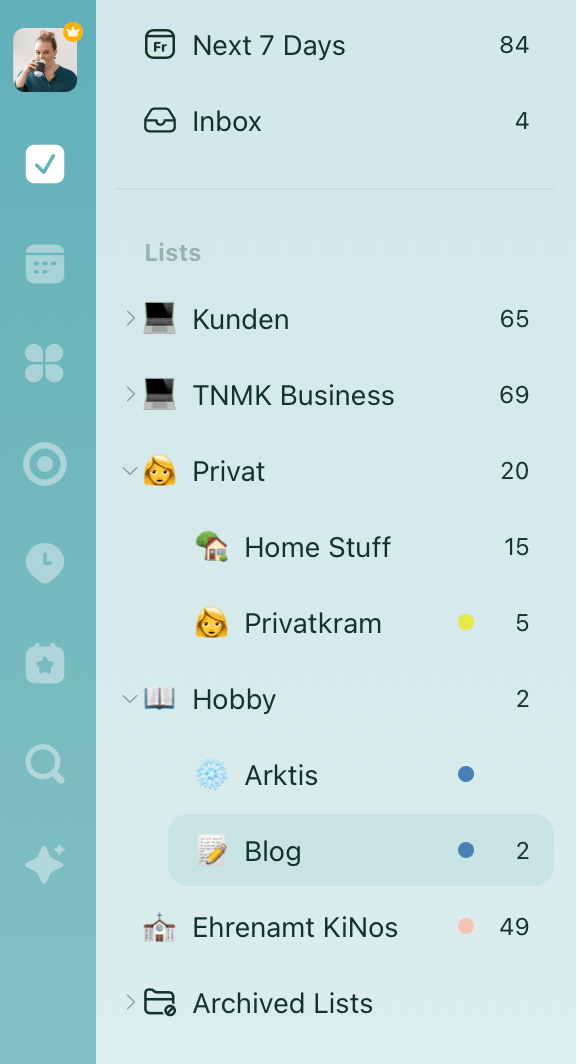
I have defined my first-level lists as: client work, work admin, private, volunteering and hobby. You can add a little emoji too if you want. Also you can add a color for each list if you like.
Each list can have second-level lists. For my client work I have one list for each client. For private I have home stuff and private stuff. For hobby it has been Arctic and Blog. I could add in reading or crafting or whatever. Here is just a glimpse.
For each list you are able to set specific viewing option. The app offers: List View, Kanban View, Timeline View. I usually stick to the List View but if you have different projects other views may come in more handy. I like that the system can grow with me and my tasks. You can also define for each list if they show up in smart lists aka automated lists. This may be helpful if you keep a bucket list in the app. Or you do a brain dump that is not yet sorted into categories and it is not spoiling your other categories and lists.
The achieved list currently holds old clients and I will probably close the Arctic list and it will be moved there.
Setting up my Tags in Tick Tick
As I said the other option to sort your to-dos is with Tags. I have struggled a bit here how to use them and have changed that around. I conferred with ChatGPT on that and got a bit more streamlined. Today it looks like this:
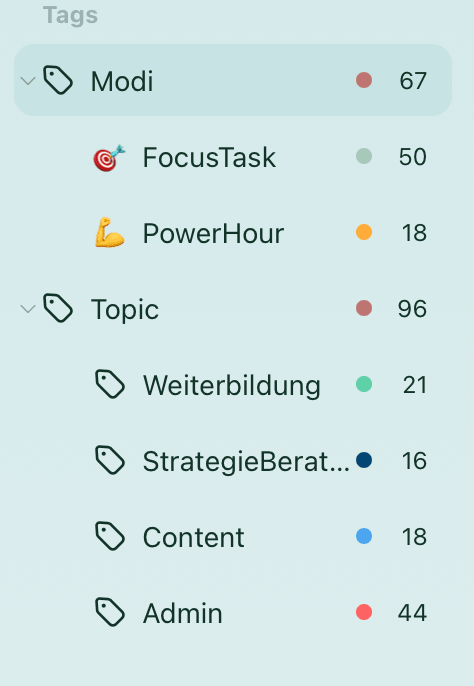
For tags I have two systems. One is Modi – it helps me to sort through how much brain power I need for the task. Like the smaller tasks time-wise or the ones that are more of a nuisance are filed under PowerHour.
The second system I use for tags is Topics. Is it more admin or content work. Is it something I want to research or educate myself in.
This helps me to find tasks when I have just an hour of time before I head into a meeting or am done with a task quicker than I thought. I can just sort through my power hour tag and pick a few tasks and power through. On the other hand sometimes I feel creatively burnt out and need some input so I go look at my educational tag and see if there is a video or article I wanted to read.
Lately I haven’t really used this as much as I have previously. Specially the power hour tag helps me to dump all the small stuff that usually falls through the cracks. That needs doing at some point but is not urgent.
How I use the TickTick App for Time Management
I don’t want to make this post longer than necessary even though there is so so much to talk about. So I just walk you – quickly – through a day when I use the app.

Mornings: I open the app in calendar view. This gives me a view of what is ahead.
As you my see in the screenshot I have set up repeating tasks (Focus tasks) that are basically time blocks for my clients. I sort certain time-sensitive tasks into the slots.
The color codes ar important:
green – meetings and appointments imported from my iCal (if you delete them in Tick Tick they will also delete in your calendar!)
The other colors are grey – no urgency | blue – low | orange – medium | red – high.
Those will translate into the Eisenhower Matrix accordingly.

The Eisenhower Matrix could be a whole separate post. There are so many ways to view it with tasks or tags or lists. According to deadlines for the next week, the entire month. I have it set to “All” in the screenshot. As you can see I have a ton of overdue tasks. Mostly for the volunteering role or stuff I want to do which isn’t time-sensitive. I need to clean this up at some point.
Ok back to how I work with the app. Once I have taken an overview in the calendar I go to my list view that is set to Today. Every time I check a task it will be removed from the calendar view. This helps me see what gets done and the white space in the end.
I could keep talking but the app is huge in possibilities so I’ll not go into detail.
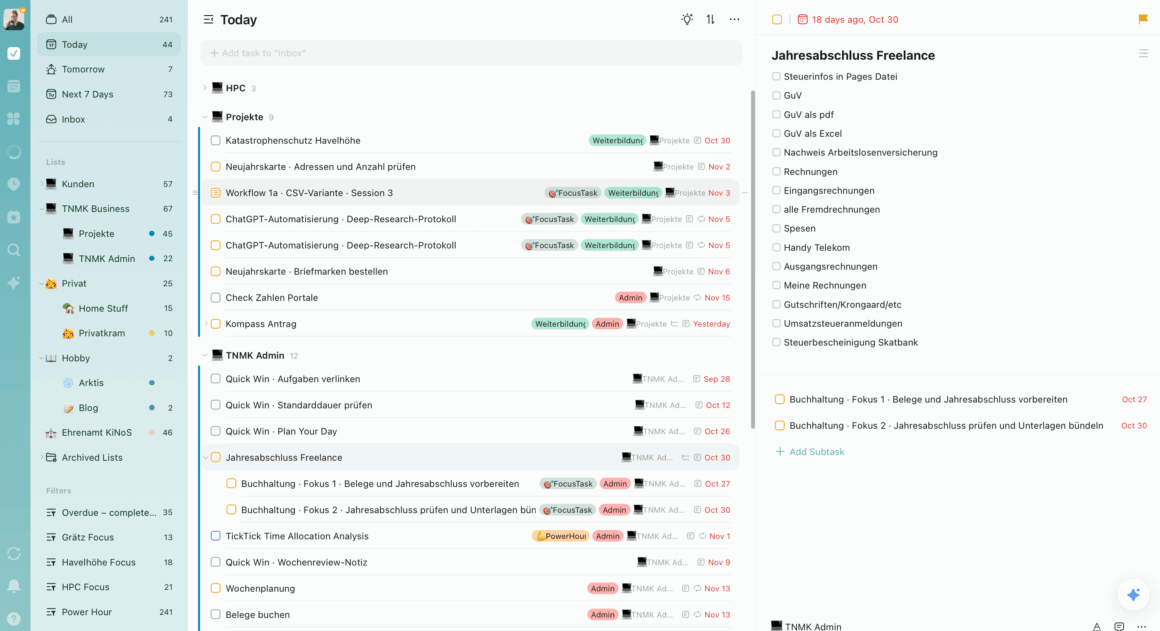
Ignore the many overdue task. My clients list are more up-to-date. Just want to give you glimpse. There a multiple options to sort your to-dos. I have sorted them by Lists (categories) and with in they are sorted by due date.
The little light bulb at the top gives you a suggestion of tasks you should tackle first and tells you long postponed or overdue or that are upcoming. It sometimes helps when overwhelmed.
A look at the Statistic of the Tick Tick App
Alright, let’s talk about statistics. I know you all love a good pie chart and if it tells you what you achieved even better. There are three tabs for statistics. Everything I share here is from the desktop app. The phone stats show more about the rank I am at (Level 7 – Skyrocket) and my badges.
Statistics in Tick Tick App – Overview Tab
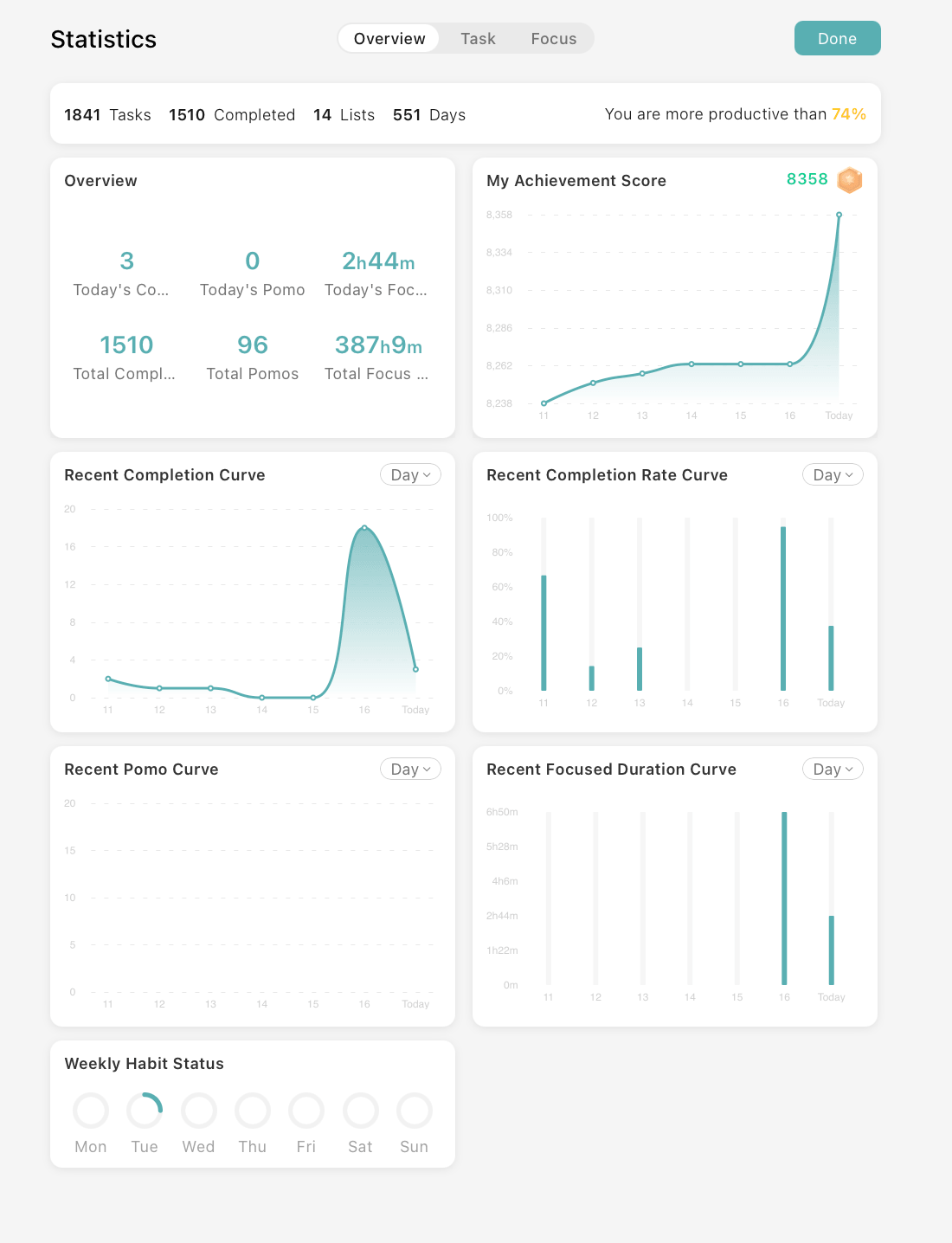
This tab shows you an overview (surprise). A summary of all your completed tasks, focus times, completion rates and such. For most of the charts you can switch between daily, weekly and monthly view.
You can check if there are days more productive than others. Or how much focus time you’ve had.
I am not using this tab very much as I find the other. ones a bit more interesting. I mainly look at the top two here.
Statistics in Tick Tick App – Task Tab
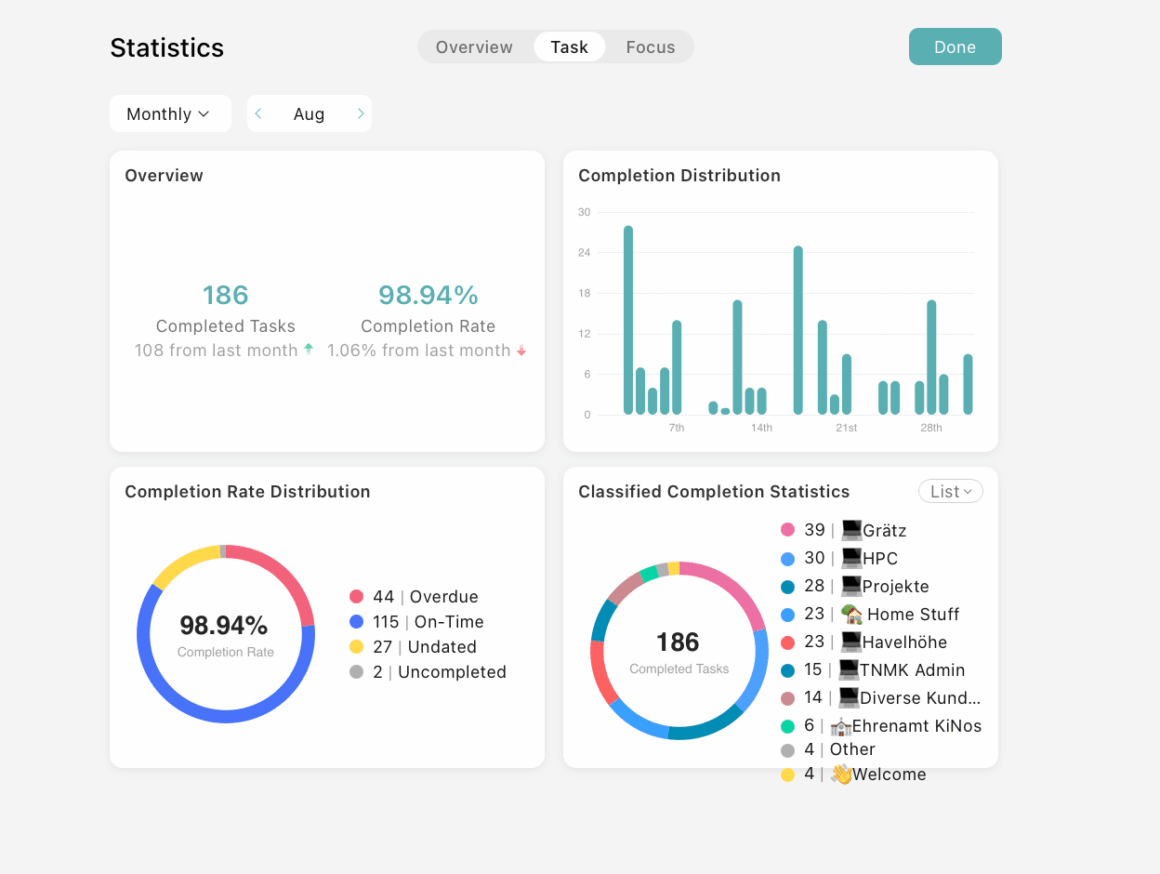
This tab I found more interesting. You can again look at daily, weekly or monthly task statistics. It quickly shows you how well you are doing compared to last month, last week or yesterday. It also shows you which days you get more tasks completed in general.
The chart on the bottom right can be displayed in Lists (my categories: clients, work, hobby etc) or your set up Tags. So you have some power here to display what you want to get your numbers for. When I look at the tag statistic I always wonder if I should set it up differently. This is a work in progress.
Statistics in Tick Tick App – Focus Tab
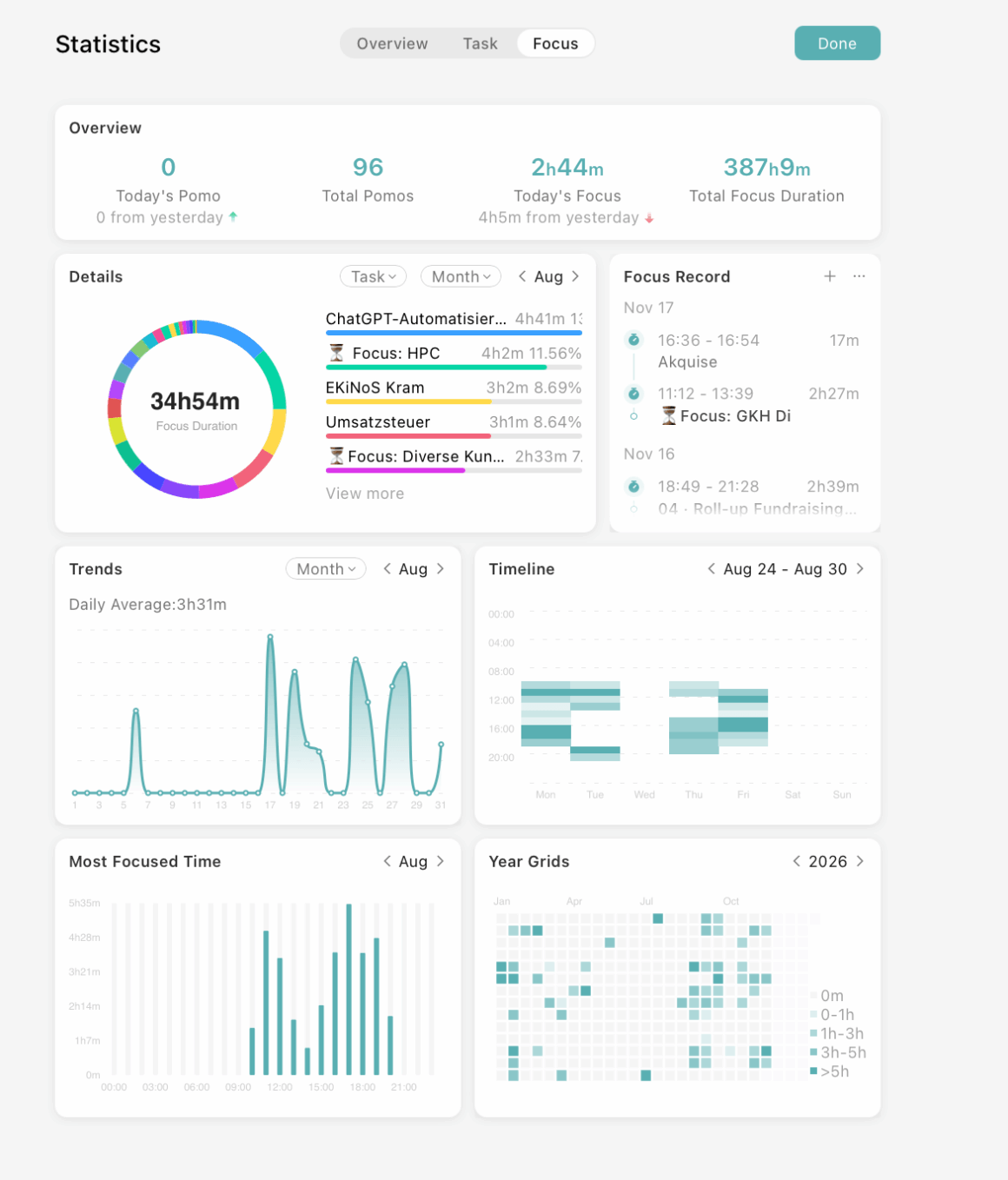
For me this is the most interesting tab of al the statistics. It shows me where my focus is. In the “detail chart” you can switch between List, Tag and Task. You can again have the three time ranges but here you also get a custom one.
The list view shows all your recorded focus times and you can add more manually if you want. I’ve not yet used this feature.
The next four chart give you an idea when you are focusing. What times in the day or months. I also like the yearly grid that will get more interesting in time.
One side info: For my work stuff I am mainly using time tracking in my accounting app. So I am not always turning on focus time in the TickTick App. This is why my statistics are not giving a complete picture of my time. It is just a lot tracking in two apps the same thing. However the statistics are much better in Tick Tick so I might make an effort next year to track it and analyze more.
Puhh, I know this has been a long post. And I didn’t even get into talking about how I integrate it with ChatGPT and AI and how this is leveling up the whole experience and time management (Are you interested in that?). Maybe save this post and come back after NaBloPoMo or when you want to re-organize your time management.
The app offers a 7-day trial for the premium features if you sign up. If you do, make sure to really use that to understand the features and what you can do. There is a welcome sequence your can work through that explains the basic features. I don’t like buying apps in a subscription, but these 50$ are well spent (maybe there will be a Black Friday sale?!).
Do you use a to-do list app? How do you manage your to-dos? Have you struggled with combing analoge and digital? Let me know if you have any specific questions regarding Tick Tick? Should I make this a series and walk you through some of the stuff in more detail? Anyone already using Tick Tick?
